
👥 Classes and pupils
Create a class and add pupils
Three ways to add pupils: type names, use the class code, or import a spreadsheet.
Open your class from the Dashboard. On the Pupils tab you can add pupils in three ways.
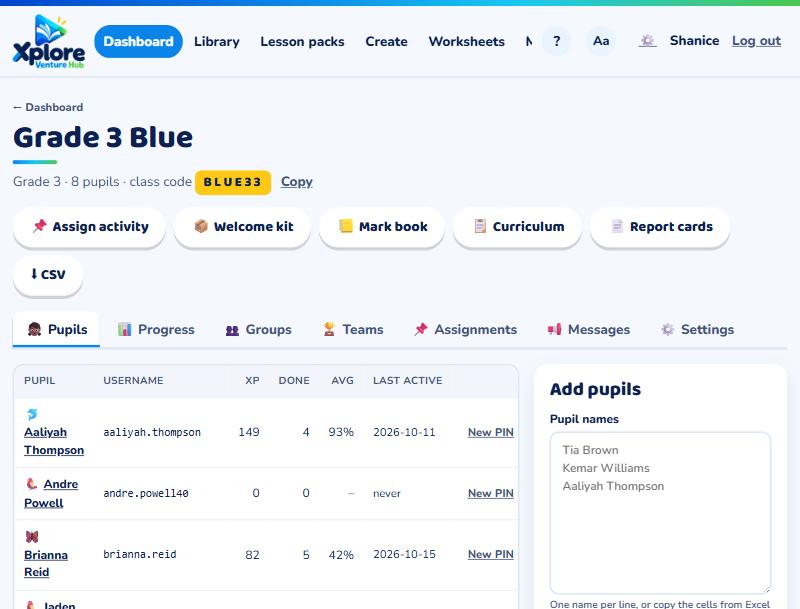
Type their names
Paste or type one name per line. XVH makes an account and a PIN for each pupil. Print the login cards to hand out: each card shows the pupil's username and PIN.
Let pupils join with the class code
Every class has a code (shown at the top of the class page). Pupils go to xvh.io/join, type the code and their name, and choose their own PIN.
Import a spreadsheet
Use Import to upload a list from Excel or a CSV file. You'll see a preview before anything is created. School admins can import the whole school at once from My school.
A pupil who already has an account
Under "Pupil already has an account?", type their username and press Add to class. They keep all their progress (useful for a new school year).
Linking parents
Open a pupil's page to see their parent link code. Give it to the parent: they type it on their family page to follow their child's progress.
Deleting a pupil
If a pupil has left and the school or family asks for their information to be deleted, open the pupil's page and use 🗑️ Delete this pupil at the bottom. Type their username to confirm. This permanently deletes their account, results, writing, pictures and reading recordings, and removes them from every class. It cannot be undone.
For the XVH admin: adding pupils
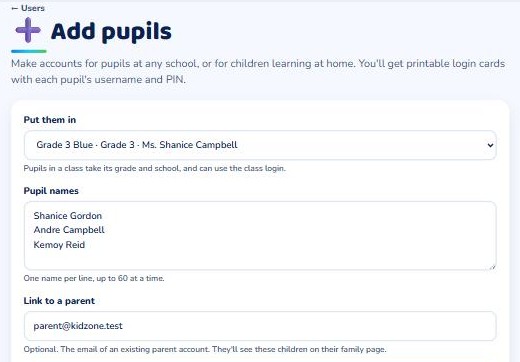
Open Admin → Users and press ➕ Add pupils.
- Under Put them in, choose a class at any school. The pupils take that class's grade and school. Or choose No class (home learner), then choose a grade and, if you like, a school.
- Type one name per line (up to 60 at a time).
- To link the children to a parent, type the email of their parent account. They will show on that parent's family page.
- Press Create accounts and print the login cards. The PINs are shown only once.
Home learners log in at xvh.io/login with their username and PIN.