
🚀 Getting started
Getting started as a teacher
Sign up, join your school and set up your first class.
1. Sign up
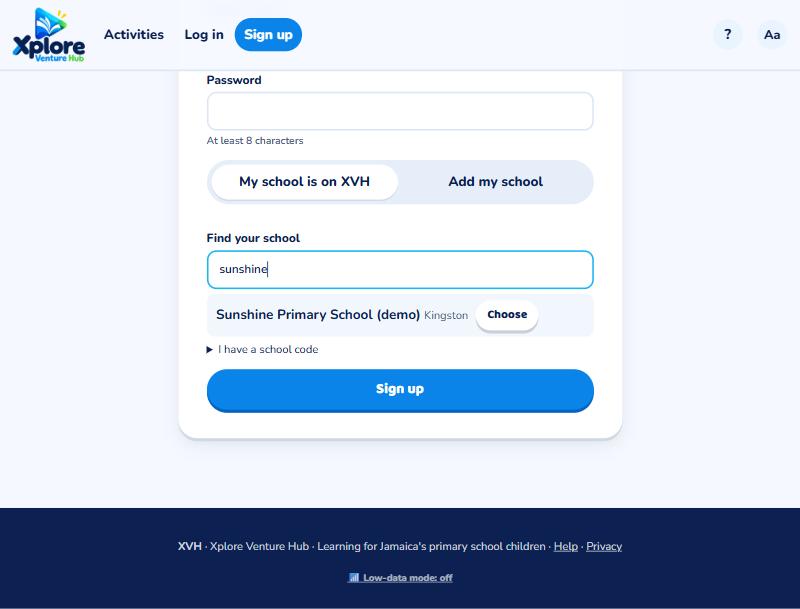
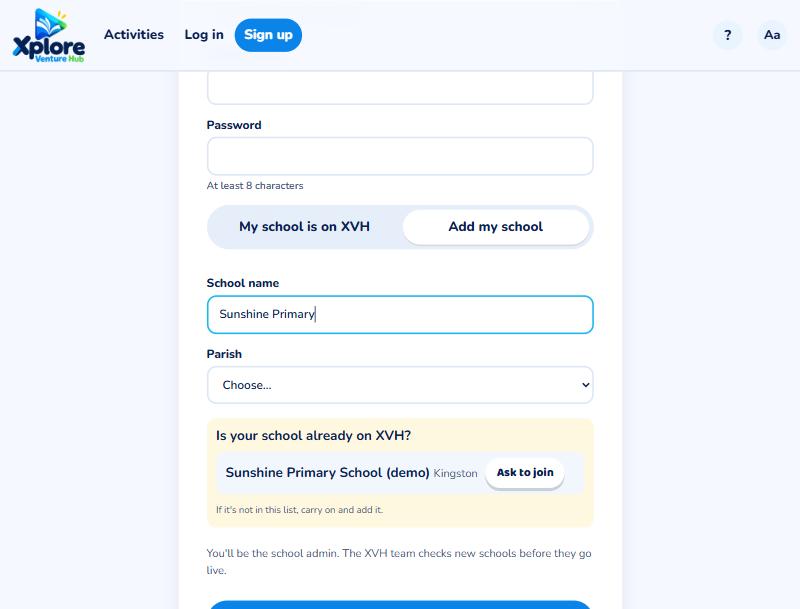
Go to Sign up and choose Teacher. Then:
- My school is on XVH: start typing your school's name and press Choose when you see it. No code needed: your school admin is asked to approve you. (Or open "I have a school code" and type the code from your principal.)
- Add my school: only if your school isn't on XVH yet. You become its school admin. As you type the name, XVH shows schools that look the same: if yours is there, press Ask to join instead, so the school isn't added twice.
2. Wait for approval
A school admin approves new teachers, and the XVH team approves new schools. You'll get an email when your account is ready, then you can log in.
3. Make a class
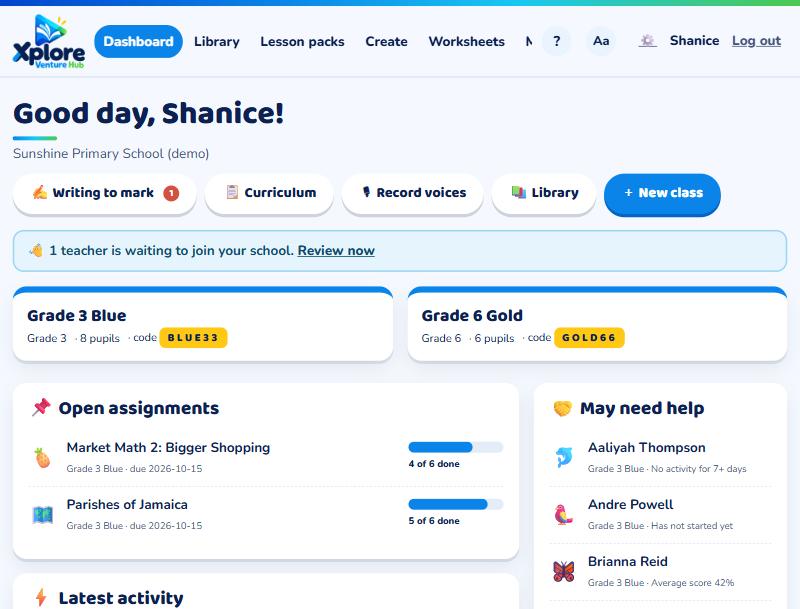
On your Dashboard, press + New class, give it a name (for example "Grade 3 Blue") and choose the grade.
Your dashboard shows a 🚀 Getting started checklist that ticks itself off as you go: make a class, add pupils, print login cards, let pupils play, assign an activity, look at results and try a live quiz. In your first week XVH may also send you up to 3 short tips emails, only for steps you haven't done yet. You can switch them off in your account.
4. Add your pupils
See Create a class and add pupils.
Tip: Start with a short activity in class so everyone learns how to log in, then set work for home.