
📌 Setting work
Lesson plans
Plan a lesson from the NSC units and objectives, link XVH activities, print it and share it.
Open Plans in the menu (or Create → Lesson plan) and press + New lesson plan.
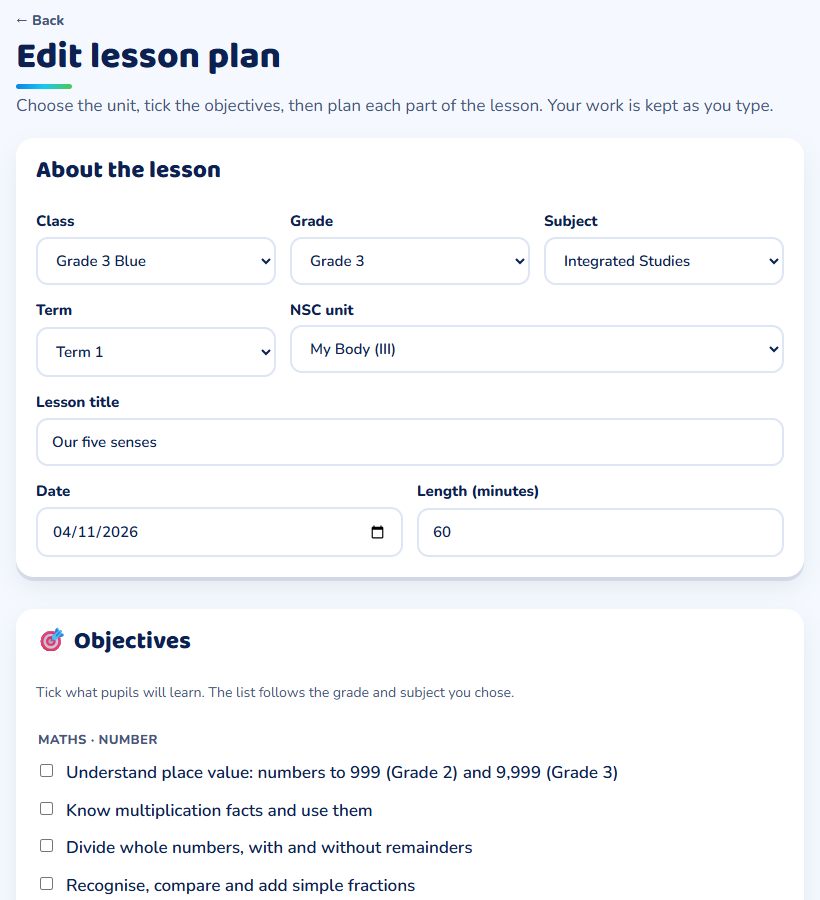
1. About the lesson
Choose your class: its grade fills in for you (Grades 1 to 3 plan Integrated Studies). Pick the term and the NSC unit: the lesson title fills in from the unit, and you can change it. Add the date and how long the lesson is.
2. Objectives
Tick what pupils will learn. The list follows the grade and subject you chose. Add your own objectives, one per line, in the box underneath.
3. The lesson
Plan each part of the 5E lesson: Engage, Explore, Explain, Elaborate and Evaluate, then materials, support and extension (differentiation), assessment and your reflection after the lesson. Nothing is required: fill in as much as you need.
To use an XVH activity in any part, press 🔗 Link an activity. You see the activities for the unit you chose, or type to search. Press + Add.
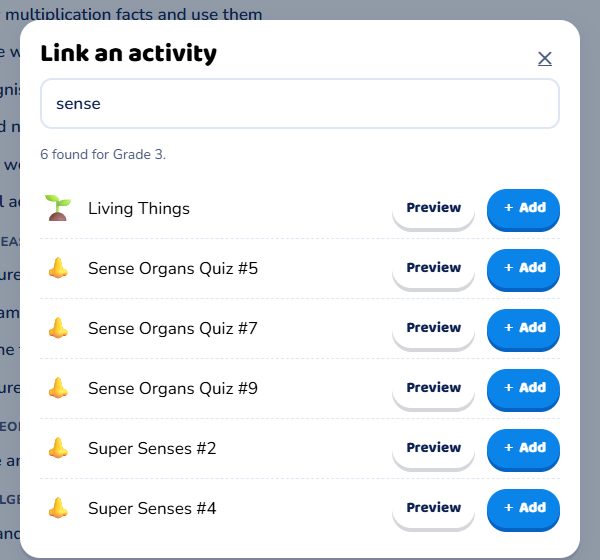
Press 💾 Save plan. Your work is kept in the browser as you type, so if the page closes you can press Restore it when you open the plan again.
Using your plan
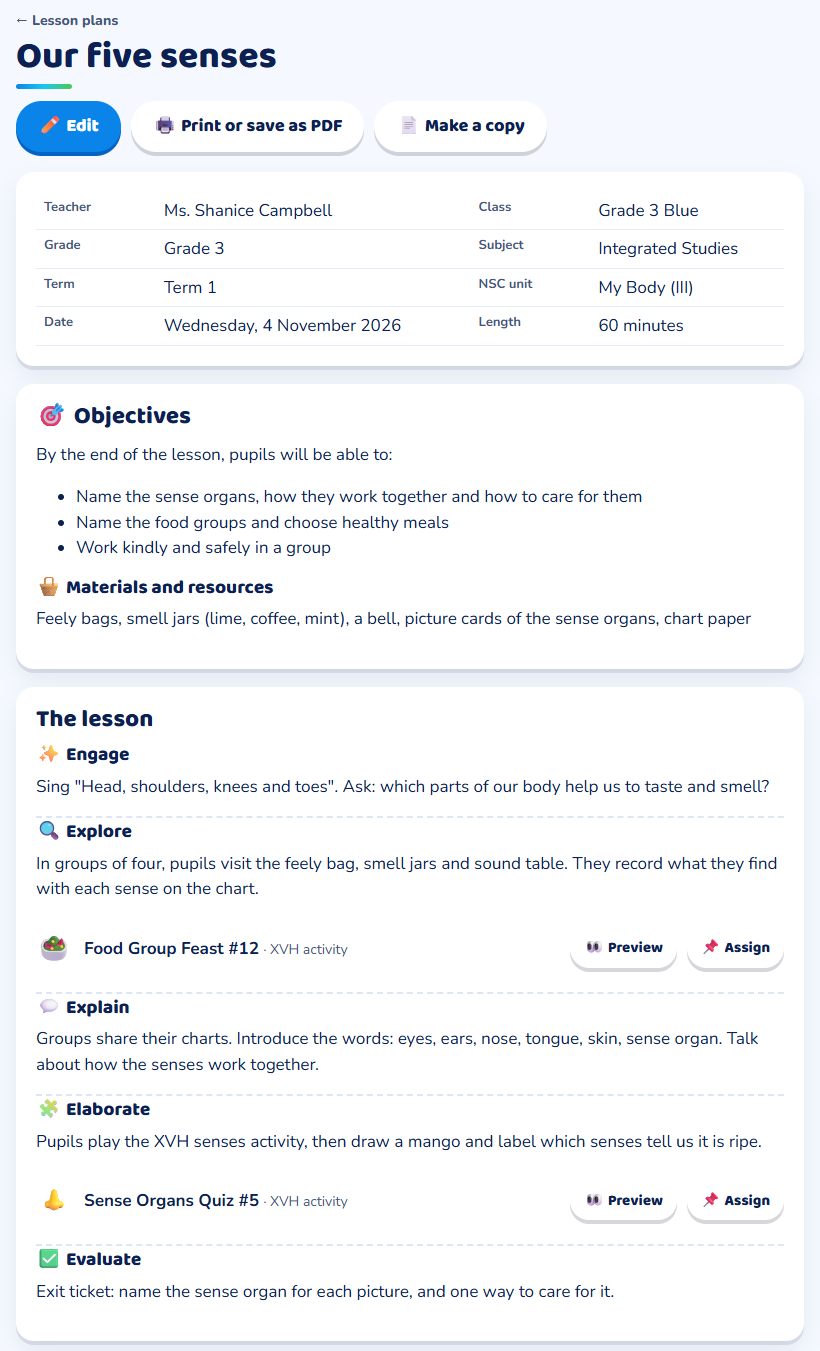
- 🖨️ Print or save as PDF prints the plan without the menus, ready to hand in.
- 📌 Assign next to a linked activity sets it for your class.
- 📄 Make a copy to reuse a plan for another day or class.
- My plans lists your plans week by week.
Sharing with your school
Tick Share with teachers at my school at the bottom of the plan. Colleagues find it under Plans → Shared at my school. They can read, print and copy it, but only you can change or delete it.